How to Set Up a Gaming Headset with Mic: A Simple Step-by-Step Guide
How to Set Up a Gaming Headset with Mic: A Simple Step-by-Step Guide
By the Exquisite Deals Team — the Exquisite Deals curation team hand-reviews every product it lists, comparing specs, value, and real buyer questions before recommending anything.
Quick Answer
To set up a gaming headset with a mic, plug it into your console or PC using the USB dongle, USB-C cable, or 3.5mm jack. Then open your device sound settings, pick the headset for output and input, raise the mic level, and run a quick voice test in a party chat.
Featured Product

PS5 Headset Gaming Headphones with Mic - Crystal Clear Audio — a comfortable over-ear headset with a clear boom mic that works across PS5, PC, and more. Shop now →
Why This Matters
A good gaming headset does two jobs at once. It lets you hear footsteps, voices, and game cues clearly, and it lets your teammates hear you without noise or crackle. When the setup is wrong, both jobs fail. You might hear the game but your friends can't hear you. Or your mic picks you up, but the sound comes out of your TV speakers instead of your ears.
Most of these problems are not the headset's fault. They come from one missed setting. The good news is that a gaming headset is one of the easiest pieces of gear to set up once you know the steps. You do not need to be a tech expert. You just need to plug it in the right way and point your device at the right input and output. This guide walks you through every step in plain language so your first game with a new headset sounds the way it should.
What You Need Before You Start
Before you begin, gather a few things so you are not stopping halfway through:
- Your headset and its cable or dongle. Wired headsets use a 3.5mm plug or a USB cable. Wireless headsets use a small USB dongle or Bluetooth.
- The device you play on. A PS5, Xbox, Nintendo Switch, PC, laptop, or phone. The steps are similar on each.
- A free port. Check that you have an open USB port or a 3.5mm jack on your controller or computer.
- A few quiet minutes. A voice test works best when the room is calm so you can hear yourself clearly.
Take the headset out of the box and look at how the mic attaches. Some mics are built in. Others are a detachable boom that clicks into the left ear cup. If yours is detachable, plug the mic in first. A mic that is loose or only half-seated is the number-one reason people say their headset "has no microphone."
How Do You Set Up a Gaming Headset Step by Step?
Step 1: Choose Your Connection
Figure out how your headset connects. A wired headset with a single 3.5mm plug goes straight into the bottom of your console controller. A USB headset plugs into a USB port on the console or PC. A wireless headset uses a USB dongle that you slide into a USB port, or it pairs over Bluetooth. Pick the method your headset supports and have that cable or dongle ready.
Step 2: Plug It In
Connect the headset. For a 3.5mm plug, push it firmly into the controller jack until it seats with a soft click. For USB, insert the cable or dongle into a port that is easy to reach. If your headset has a power switch or a pairing button, turn it on now. A light on the ear cup usually tells you it has power.
Step 3: Open Your Sound Settings
Go to the audio menu on your device. On a PS5, this is Settings, then Sound. On a PC, click the speaker icon near the clock and open Sound settings. On a phone, plug in and the switch is usually automatic. This is the screen where you tell your device to actually use the headset instead of the TV or built-in speakers.
Step 4: Set Output and Input
Set two things. Output is where the sound goes, so choose your headset there to send game audio to your ears. Input is where your voice is picked up, so choose your headset mic there. Many people set only the output and wonder why nobody can hear them. Always set both.
Step 5: Adjust the Microphone Level
Find the microphone level or mic gain slider in the same menu. Speak in your normal voice and watch the meter move. Aim for a level that fills about two-thirds of the bar when you talk. Too low and you sound faint. Too high and your voice clips and crackles. If your headset has an inline mute switch or a flip-to-mute boom, make sure it is not muted.
Step 6: Run a Voice Test
Test before you jump into a match. Most consoles have a built-in mic test that plays your voice back to you. If not, start a party chat with a friend or record a short clip on your phone. Listen for clear speech with no echo and no background hiss. If it sounds good to you, it will sound good to your team.
Step 7: Fine-Tune the Fit and Volume
Slide the headband so the ear cups sit gently over your ears, not squeezing them. Position the mic about two finger-widths from the corner of your mouth, slightly off to the side so it does not catch your breath. Set the game volume at a comfortable level where you can still hear people talk. You are ready to play.
Common Mistakes to Avoid
A few small slip-ups cause most headset headaches. Avoiding them saves you a lot of frustration:
- Setting output but not input. This is the most common one. You hear the game fine, but your mic never got selected, so nobody hears you.
- A half-plugged mic. A detachable boom mic that is not fully clicked in acts like it is broken. Push until it seats.
- Leaving the mic muted. Many headsets mute when you flip the boom up or when an inline switch is toggled. Check it before blaming the settings.
- Mic gain too high. A maxed-out mic sounds worse, not louder. It clips and adds hiss. Keep it in the middle range.
- Ignoring the wrong port. On a PC, front-panel jacks are sometimes not wired. If the rear ports work and the front does not, use the rear.
- Forgetting to charge a wireless headset. Low battery causes dropouts and static. Charge it fully before a long session.
Care and Maintenance Tips
A gaming headset lasts far longer when you treat it kindly. Ear cushions collect sweat and skin oil over time, so wipe them every week or two with a slightly damp cloth and let them air dry. Never soak them. Keep the headset on a stand or hook rather than dropping it on the desk, where the cable can get pinched and the frame can get crushed.
Cables are the weakest part of any wired headset. Do not wrap the cord tightly around the headset for storage, because that stresses the wires inside near the plug. Coil it loosely instead. For wireless models, avoid draining the battery to zero every time, since topping up before it dies is easier on the battery over the long run. Keep the mic away from food and drink, and store the whole headset somewhere cool and dry, out of direct sun. These small habits keep the sound clear and the padding comfortable for years.
Our Pick
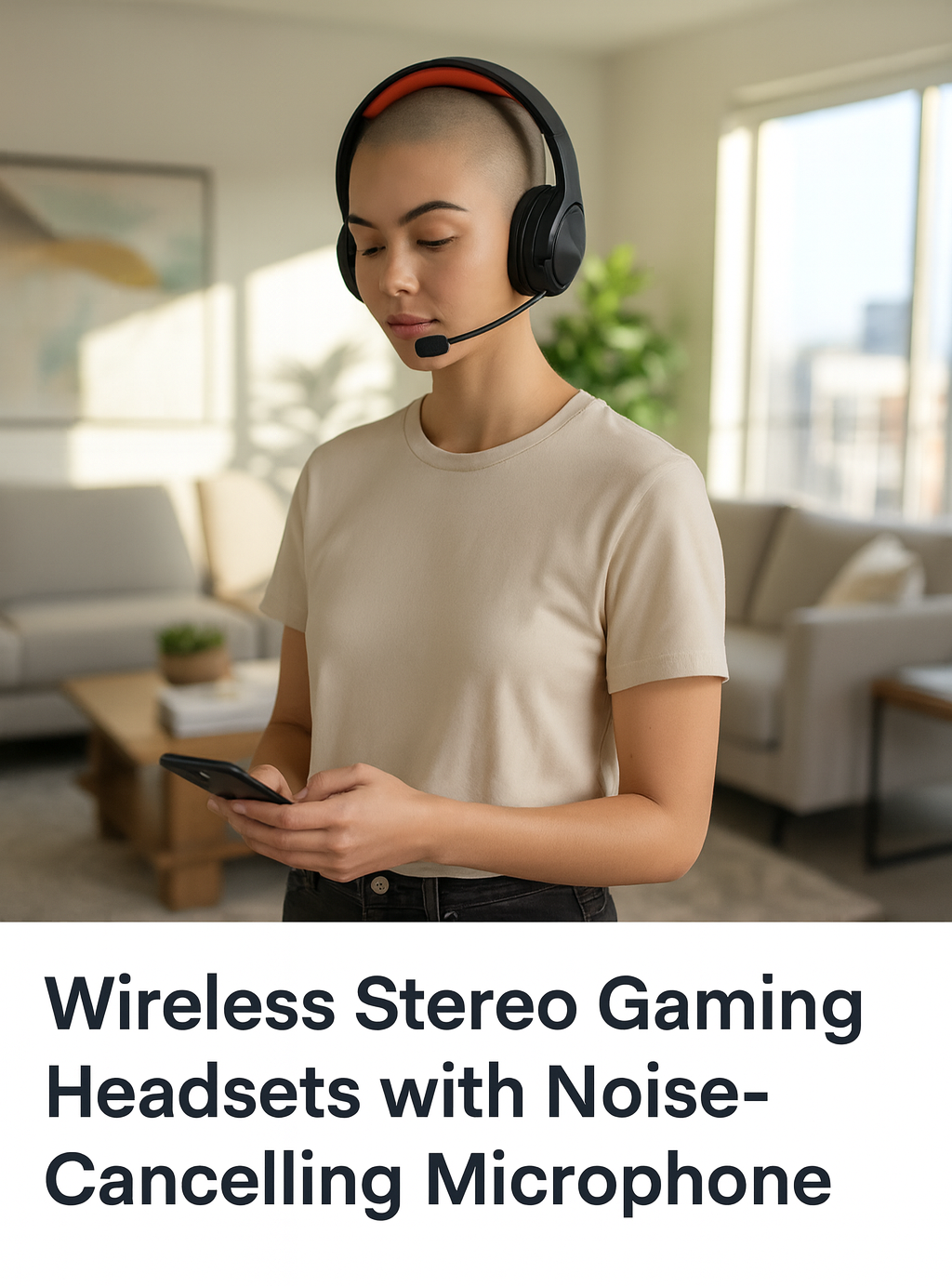
For most players who want an easy setup and clear voice chat, the PS5 Headset Gaming Headphones with Mic is a sensible choice. It uses a simple wired connection, so there is no pairing to fuss with, and the boom mic delivers clear speech to your team. The over-ear cushions are built for long sessions, and it works across PS5, PC, and other devices with a standard jack. If you want a headset that plugs in and just works, this one fits the bill. Check the product page for full, up-to-date details.
Frequently Asked Questions
Why can my team hear the game but not my voice?
Your output is set to the headset but your input is not. Open your sound settings and choose the headset as the microphone input as well. Also confirm the mic is plugged in fully and not muted.
Do I plug my headset into the console or the controller?
On a PS5 or Xbox, a 3.5mm headset plugs into the jack on the bottom of the controller. A USB or wireless headset connects to a USB port on the console itself. Either way, the console still sends audio to the headset once you select it in settings.
How do I stop my mic from picking up background noise?
Lower the mic gain slightly and move the boom a little farther from your mouth. Position it to the side so it does not catch your breath. If your headset or console has a noise-gate or "mic monitoring" setting, turn on the noise reduction option.
Why does my voice sound like it has an echo?
Echo usually means mic monitoring or sidetone is turned up too high, or a teammate's open speakers are feeding your voice back. Turn down mic monitoring, and ask others to use headsets instead of speakers.
Can I use one gaming headset on multiple devices?
Yes, if it has a standard 3.5mm plug or a compatible USB and Bluetooth option. Many headsets move easily between a PS5, PC, and phone. You just repeat the output and input steps on each new device.
My headset is too quiet even at full volume. What now?
Check both the game volume and the system master volume, since they stack. On a PC, make sure the headset is the default output and its own volume slider is up. A worn or partly plugged 3.5mm connector can also cut volume, so reseat it firmly.
How do I keep the ear pads from wearing out?
Wipe them clean every week or two with a damp cloth, keep the headset out of direct sun, and store it on a stand. Sweat and heat break down the foam fastest, so a quick wipe after long sessions goes a long way.
Key Takeaways
- Plug in first, then tell your device to use the headset for both output and input.
- Setting output only is the top reason teammates cannot hear you.
- Keep mic gain in the middle range for clear, natural voice with no clipping.
- Always run a quick voice test before a match to catch problems early.
- Wipe the ear pads, coil the cable loosely, and store it on a stand to make it last.
Related Resources
Want more simple setup guides? Read How Do AI Translation Earbuds Work? for another take on clear audio gear, Best Budget Vlogging Cameras in 2026 if you also capture your gameplay, and How to Install a Dash Cam in Your Car for a step-by-step example on another device. You can also browse the full Computer collection for more accessories.
Ready to Play?
Ready to find the right fit? Explore Exquisite Deals' Computer collection and shop the deal at exquisite-deals.shop.